
How to Generate Giving Statements

Thank you for supporting Encounter Ministries (Revival Nation, Revival Nation, The Encounter Charlotte, and Revival Nation Church) with your charitable donations. Here’s a step-by-step guide on generating giving statements.
You can access your giving profile to view or update your information at any time by logging into your giving account hosted by Church Community Builder & PushPay.
Note: If this is your first time signing in, click “request account access” on the sign-in page to generate your log in credentials. You can also email office@encountertoday.com or support@encountertoday.com to have an activation email generated for you.
Logging in to your profile first will allow for you to click the direct link button to begin generating your statement without the need to navigate through additional steps.
If you need assistance, email office@encountertoday.com or call the office at 704-486-0324.
Once you’re logged in, click this button to immediately begin generating your statement.
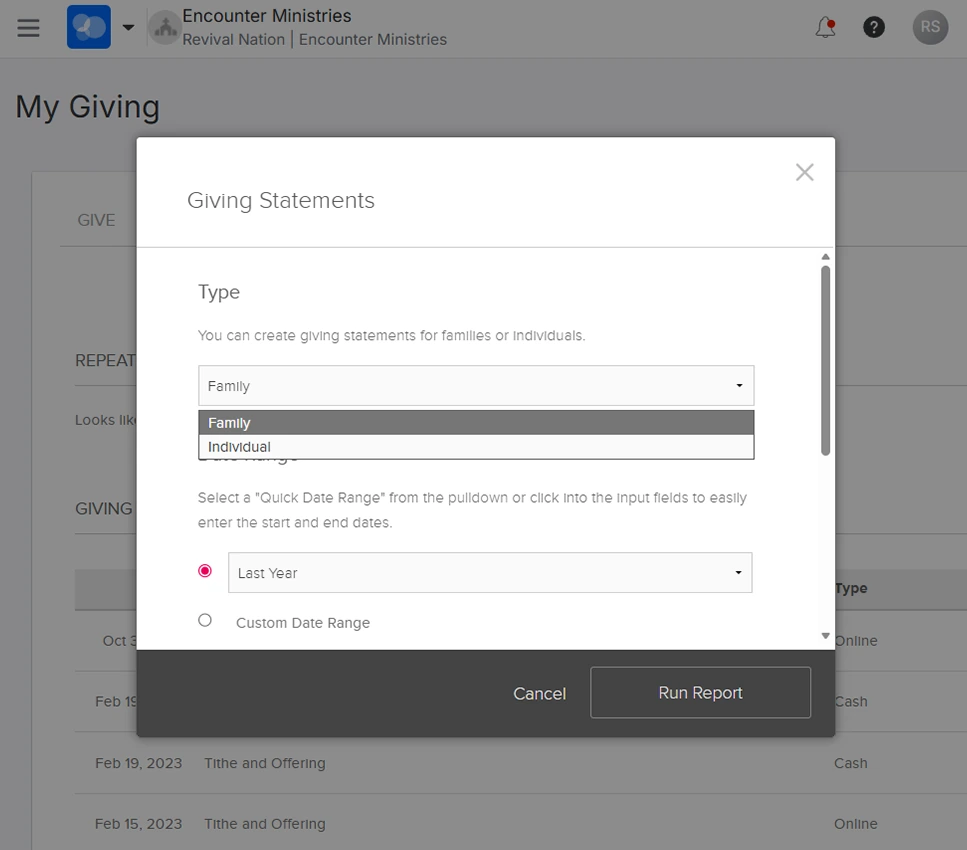
Clicking the “Generate My Giving Statement” button will open this form to run your giving report.

For year-end giving reports, it’s easiest to use the “Quick Date Range” option and select “Last Year” in the drop-down menu. You can also set a custom date range if you only want information from a specific range not listed in the “Quick Date Range” options.

If you have family, alternate accounts, or business accounts that are tied to this profile and you want to include them in your report, set the report type to “Family”. If you would prefer to only see donations submitted through this profile, set the type to “Individual”.
Note: When running a combined family report, only profiles listed as “spouse” in your profile family will be combined in the total. All “Other” or “Child” accounts will be listed on separate pages within the report.
Further down the form, you can select the tax-deductible status of the funds you want included in the report and if you would like to include pledges made.

Once you’ve set the parameters of your report, click “Run Report’.
Note: An error message will be displayed if a parameter is missing or there are no transactions that match the criteria.
An alternate way to generate statements is from your profile involvement page. To access your giving statements from your profile page, sign in to your account and click on the profile icon in the top-right corner (either your initials, or a photo you’ve selected), then navigate to the “Involvement” tab.


Scroll down until you see the “Financial” card.
From here, you can hover over the card to reveal the ellipses (three dots) in the top-right corner of the card. Clicking the ellipses will open a drop-down menu where you can generate statements and perform other account financial actions.
If you have other family members, additional email accounts, or personal businesses associated with your account that have given, you can click the toggle to include family to see their giving information alongside your giving information in the involvement feed.
